


Game stuttering in Windows 11 can ruin even the most powerful gaming setups. This guide combines proven system optimizations with advanced troubleshooting techniques to eliminate frame rate inconsistencies and deliver buttery-smooth gameplay :cite[1]:cite[2].
1. Optimize Windows 11 Gaming Settings
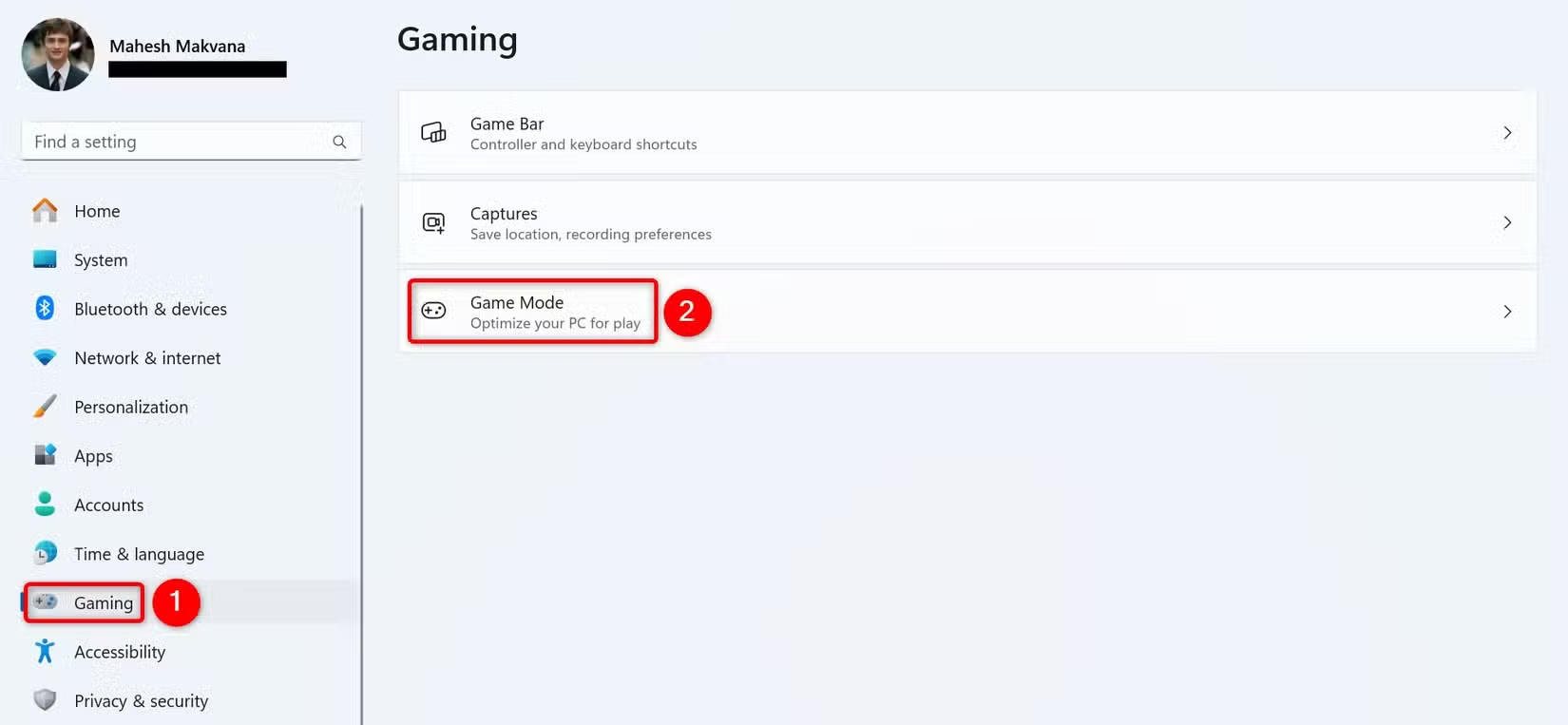
Game Mode: Windows 11’s Game Mode should theoretically improve performance by prioritizing system resources for games. However, some users report better stability with it disabled :cite[2].
- Press Windows + I to open Settings
- Navigate to Gaming > Game Mode
- Toggle Game Mode and test performance in both states
Graphics Preferences: Designate your dedicated GPU for gaming applications:
- Settings > System > Display > Graphics
- Browse to add your game’s .exe file
- Set graphics preference to “High performance”
2. Update and Optimize Drivers
Outdated or incorrect drivers are among the most common causes of stuttering:
- GPU Drivers: Always download directly from NVIDIA/AMD/Intel
- Chipset Drivers: Update from motherboard manufacturer’s site
- Network Drivers: Crucial for online gaming stability
For NVIDIA users, try these control panel settings:
- Power Management Mode: Prefer Maximum Performance
- Texture Filtering – Quality: High Performance
- Vertical Sync: Use the 3D application setting
3. Manage Background Processes
Windows 11 includes many background services that can interfere with gaming:
- Press Ctrl+Shift+Esc to open Task Manager
- Sort by CPU, GPU, and Memory usage
- End non-essential tasks (avoid system processes)
Common Culprits:
- Discord overlay
- Game recording software
- Antivirus scans
- Windows Update
4. Network Optimization for Online Games
Network-related stuttering appears as sudden lag spikes or rubberbanding:
Wired Connection
Ethernet provides lower latency and more stable connections than Wi-Fi. If stuttering occurs during online play, switching to wired can make a dramatic difference :cite[2].
Wi-Fi Optimization
If wired isn’t possible:
- Use 5GHz band instead of 2.4GHz
- Enable QoS in router settings
- Position closer to router
Windows Network Tweaks:
- Disable Large Send Offload (LSO):
netsh int tcp set global rss=disabled - Set network profile to Private (not Public)
- Disable IPv6 if not needed
5. Advanced System Tweaks
Power Plan Settings:
- Control Panel > Hardware and Sound > Power Options
- Select “High performance” or create custom plan
- Set minimum processor state to 100%
Disable Fullscreen Optimizations:
- Right-click game shortcut > Properties
- Compatibility tab > Disable fullscreen optimizations
- Check “Run as administrator”
Shader Cache Management: Clear old cache files that may cause conflicts:
- NVIDIA: Manage 3D Settings > Shader Cache Size
- AMD: Radeon Software > Graphics > Advanced > Reset Shader Cache
6. Hardware Considerations
When software fixes don’t resolve stuttering, hardware may be the limitation:
- RAM: 16GB minimum for modern games, ensure dual-channel configuration
- Storage: NVMe SSDs reduce asset loading stutter
- Thermal Throttling: Monitor CPU/GPU temps (below 85°C under load)
- Power Supply: Insufficient power can cause performance drops
Game-Specific Fixes
Some games benefit from particular tweaks:
- VSync: Try disabling in-game and forcing through driver
- Frame Rate Caps: Limit to monitor’s refresh rate
- Resolution Scaling: Reduce render resolution before lowering quality
For games using Steam’s in-home streaming, additional optimizations may be needed to reduce latency and stuttering :cite[2].
Conclusion: A Methodical Approach
Eliminating game stuttering requires systematic troubleshooting:
- Establish baseline performance metrics
- Implement changes one at a time
- Test thoroughly after each adjustment
- Document results to identify effective solutions
Most stuttering issues can be resolved through these software optimizations, though hardware upgrades may be necessary for severely underpowered systems. Remember that some stuttering may be inherent to certain game engines or online multiplayer environments.